Two USB-C cables can look identical and behave completely differently: one charges a laptop at full speed, while the other barely keeps a phone alive. The plug is only a shape, and the power, speed, and video you get depend on the cable, the charger, the port, and the device working together. That gap between “shape” and “spec” is why so many people buy a cable that fits perfectly and still end up with slow charging, a blank monitor, or crawling file transfers.
This guide, USB-C Explained: Understanding Connectors, Cables, and Charging, separates the connector from the standards that run through it. You will learn how to read cable marks and port icons, what an e-marker chip does, why a 240W cable can still move data slowly, and how to troubleshoot problems one variable at a time.
Table of Contents
1. What USB-C Is (and What It Isn’t)
The Physical Connector: 24 Pins, Reversible, One Universal Shape
What is USB-C? USB-C is a 24-pin reversible physical connector specification designed to carry power, high-speed data, and display output through a single cable. The connector shape is separate from the protocols running through it, such as USB 3.2, USB4, or Thunderbolt, which decide transfer speed and capability.
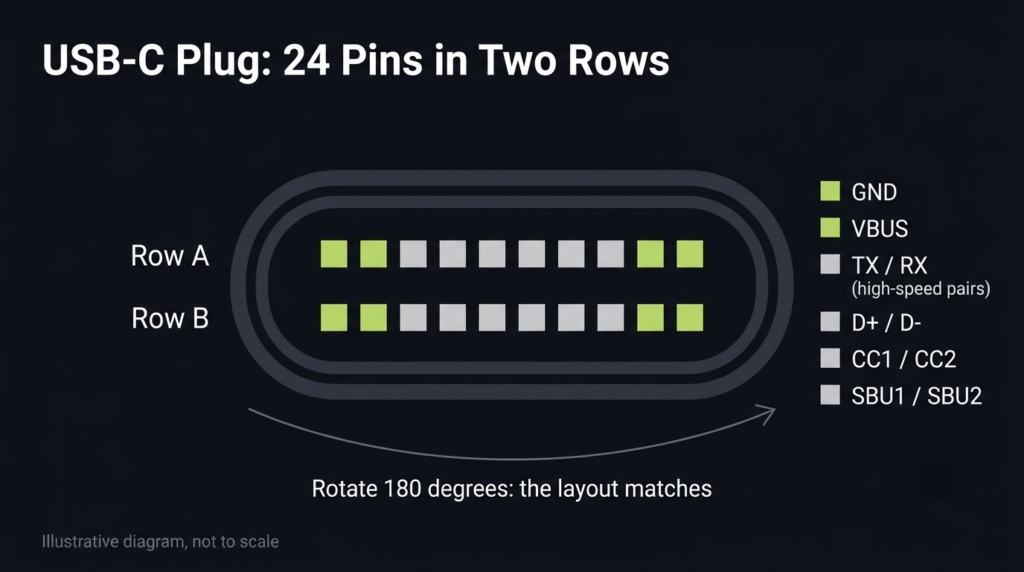
The small oval plug arrived in 2014 and was built to end the fumbling of older connectors, because it fits either way up. That works because the 24 contacts are arranged in two rows of 12 so that rotating the plug 180 degrees presents the same functions. If you look up a USB-C pinout, you will see the same handful of groups repeated across both rows: ground and VBUS power pins, four high-speed data pairs (transmit and receive), a USB 2.0 data pair, two configuration channel (CC) pins, and two sideband (SBU) pins.
The CC pins matter most for everyday troubleshooting. They let the charger and device detect orientation, negotiate power through USB Power Delivery, and, in cables that need it, supply the small chip that reports the cable’s abilities. Not every cable connects every pin, though. Many basic charging cables wire only the power, USB 2.0, and CC lines, which is why the plug alone tells you almost nothing about what the cable can do.
The Protocols Underneath: USB 2.0 Through USB4 v2 and Thunderbolt 4/5
Think of USB-C generations as capability tiers that all share one plug. USB 2.0 tops out at 480Mbps. USB 3.x steps run at 5, 10, and 20Gbps. USB4 starts from a 20Gbps baseline and reaches 40Gbps, and USB4 v2 reaches 80Gbps in both directions, with an asymmetric mode that can push one direction to 120Gbps while the other runs at 40Gbps. Thunderbolt 4 guarantees 40Gbps, and Thunderbolt 5 offers 80Gbps with a Bandwidth Boost mode of up to 120Gbps. Table 2 in the data section compares them side by side.
Power runs on a separate track. USB Power Delivery decides how many volts and amps flow, and display output uses DisplayPort Alternate Mode or tunneling inside the data protocol. A single port can support any mix of these, which is why two USB-C ports on the same laptop sometimes behave differently.
The “Same Plug, Same Performance” Myth
The most common mistake is assuming that matching plugs mean matching performance. A USB-C result is set by four parts: the charger, the cable, the port, and the device on the other end. Whichever part has the lowest capability usually sets the ceiling for the whole connection.
Real products show how wide the spread is. According to Apple’s iPhone 15 support documentation as reported by MacRumors, the USB-C port on standard iPhone 15 models runs at USB 2.0 speed, while the Pro models support 10Gbps and ship with a cable that is itself limited to USB 2.0 speed. A Thunderbolt laptop port, meanwhile, can carry data, video, and charging at once. A cable rated for 240W may carry only USB 2.0 data, as the data section explains. USB-C does not guarantee any feature by itself, so labels, port icons, and spec sheets matter far more than the plug.
2. How USB-C Power and Charging Actually Work
Volts, Amperes, and Watts: The Core Power Equation
Charging comes down to one formula: watts = volts × amps. A USB-C port starts at 5V, and without USB Power Delivery (PD) negotiation it is limited to roughly 15W (5V at 3A). PD lets the charger and device agree on a higher voltage, which raises wattage without needing more current. The common combinations are 20V × 3A = 60W, 20V × 5A = 100W, and 48V × 5A = 240W.
Voltage matters as much as current. A 5A rating does not automatically mean more than 60W: as a purely illustrative calculation (not a standard PD profile), 9V × 5A is only 45W. That is why wattage labels, not amp numbers alone, are the safer way to compare cables and chargers. It also explains why a charger’s label often lists several voltage and current pairs: the device and charger pick one combination that both support.
USB Power Delivery Evolution: SPR (60W/100W) vs. PD 3.1 EPR (240W)
The original Standard Power Range (SPR) of USB PD tops out at 20V, which means 60W at 3A or 100W at 5A. PD 3.1 added the Extended Power Range (EPR) with fixed higher voltages of 28V (140W), 36V (180W), and 48V (240W), all at 5A. The claim that 100W is the maximum for USB-C is therefore outdated, even though some retailer pages and older guides still repeat it.
Two practical rules follow. First, a charger only delivers what the device requests, so a 240W-capable cable does not force 240W into a phone. Second, EPR needs every link in the chain to cooperate: an EPR-capable charger, an EPR-rated cable with an e-marker chip, and a device built to request that power. Most phones, tablets, and ultraportable laptops do not need it. The extra headroom matters mainly for performance laptops and workstations.
Programmable Power Supply (PPS) and Fast-Charging Requirements
Programmable Power Supply (PPS) is a feature of USB PD 3.0 that lets a device request voltage in small steps instead of choosing only from a few fixed levels. Some phones rely on PPS charging for their fastest mode. Samsung, for example, describes its Super Fast Charging as built on USB PD 3.0 with PPS, and says that chargers or phones without those capabilities charge at a slower rate.
The practical lesson is that “USB PD” on a charger label does not guarantee PPS. A standard PD charger can still charge a PPS-capable phone, but not always at the phone’s top speed. To get the maximum rate for a specific phone, check the phone maker’s support page for the required charging standard and look for “PPS” among the adapter’s listed outputs. If you are comparing power banks, our portable charger buying guide covers what to check before you buy.
Dual-Role Power (DRP) and Reverse Charging
Dual-Role Power (DRP) means a USB-C port can act as either a power source or a power sink, and USB PD can swap those roles after the connection is made. The data role, host or device, can also swap independently. This is why a laptop can charge a phone, and a monitor or dock can power a laptop through the same port that carries video.
Reverse charging is the everyday version of this idea. Apple’s iPhone 15 support documentation says the USB-C port can charge accessories such as AirPods or an Apple Watch at up to 4.5W, which suits earbuds or a smartwatch but is far from a laptop-scale source. Because reverse charging drains the phone’s own battery, it is best treated as an occasional top-up rather than a routine way to power other gear.
3. How to Read USB-C Logos, Cable Markings, and Port Icons
Decoding USB-IF Certified Cable Logos (60W vs. 240W Rating)
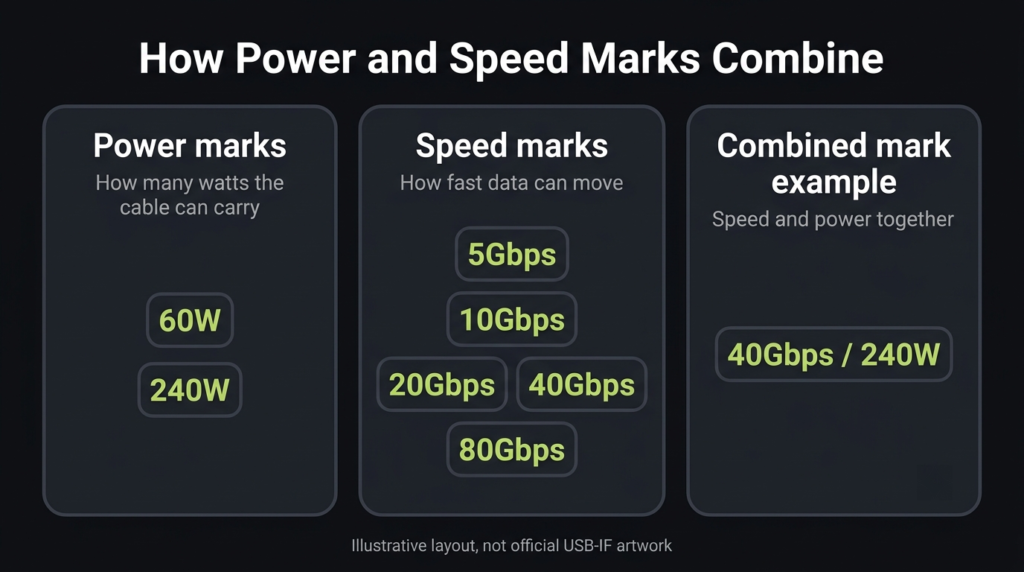
USB-IF, the group that maintains the USB standards, requires every certified USB-C to USB-C cable to carry a power marking of either 60W or 240W. A cable can also carry a combined mark that pairs a speed with a power rating, such as 20Gbps and 60W together. The mark may appear on packaging and marketing material, and for 240W cables it must also appear on the cable itself, as a sticker or on the overmold.
One trap is the number 100W. According to UL Solutions’ summary of the USB Type-C specification, USB-IF stopped certifying 100W USB-C to USB-C cables in late 2021, and certified high-power cables are now rated 240W. A certified 240W cable works with chargers and devices that need much less, so “240W” on the packaging is not a warning that you need a 240W charger. A “100W” label on a product page, by contrast, is a manufacturer claim rather than a USB-IF category. It may be accurate, but check whether the cable also shows the certified logo.
The E-Marker Chip: When and Why It Is Required
What is an e-marker chip in USB-C? An e-marker (electronic marker) chip is an integrated circuit embedded inside a USB-C cable’s plug. It communicates with connected devices to confirm that the cable can safely carry currents over 3 amperes (above 60W at 20V), handle Extended Power Range charging up to 240W, or support high-speed protocols such as USB4 and Thunderbolt.
Without an e-marker, a cable is treated as a 3A cable, which limits it to 60W at 20V. The trigger is the current and capability, not a wattage printout alone: cables that carry 5A, EPR cables, and USB4 cables all need the chip. It talks to the charger and device over the CC line and draws its own power from the connection. So the idea that e-markers exist only for 100W-plus cables is wrong, because a data-focused 40Gbps cable can need one even at modest charging power. A cable that quietly falls back to lower speed or power can be one sign of an e-marker problem, but it is only one possibility among those covered in the troubleshooting section.
Deciphering Port Icons: DisplayPort, Thunderbolt, Battery, and Speed Symbols
Ports often carry small icons that reveal capability. A DisplayPort logo indicates video output, a lightning bolt indicates Thunderbolt, a battery symbol usually marks a port that can charge the device, and older markings such as “SS” followed by a number point to a SuperSpeed data rate, for example SS10 for 10Gbps. Not every manufacturer prints these icons, and some ports ship unmarked, so the manual or spec sheet is the final authority.
Treat icons as evidence, not as absence of evidence. A port without an icon may still support a feature, but you cannot assume it does. When two ports sit side by side on a laptop, compare their icons before deciding which one gets the monitor and which one gets the charger.
USB-IF Speed-Based Naming: USB 5Gbps to USB 80Gbps
USB-IF moved consumer branding from technical generation names to speed-based names: USB 5Gbps, USB 10Gbps, USB 20Gbps, USB 40Gbps, and USB 80Gbps. The goal was to make packaging easier to compare, because older names such as SuperSpeed and multi-part “Gen” labels confused many buyers. Spec sheets and older listings still use the legacy names, so you may need to translate between the two. Table 2 maps the legacy names beside the speed-based ones.
4. Data Transfer and Display Output: The Other Half of USB-C
USB4 v2 (80/120Gbps) vs. Thunderbolt 4/5 Guarantees
Data speed is where the “same plug” myth hurts most, because published numbers vary from 10Gbps to 80Gbps depending on the page you read. Table 2 puts the tiers in one place. The key idea is the difference between a maximum and a guarantee: USB4 products can start from a 20Gbps baseline, while Thunderbolt 4 guarantees 40Gbps, 32Gbps of PCIe data, and dual 4K display support.
| Protocol Standard | Marketing Name | Max Bandwidth | Min Guaranteed Speed | Primary Use Case |
|---|---|---|---|---|
| USB 2.0 | USB High-Speed | 480Mbps | 480Mbps | Charging cables, keyboards, mice, basic sync |
| USB 3.2 Gen 1 (older: USB 3.0) | USB 5Gbps | 5Gbps | 5Gbps | Webcams, basic external drives, simple hubs |
| USB 3.2 Gen 2 | USB 10Gbps | 10Gbps | 10Gbps | Portable SSDs, docks, video-capable hubs |
| USB 3.2 Gen 2×2 | USB 20Gbps | 20Gbps | 20Gbps | Fast external SSDs, high-bandwidth storage |
| USB4 | USB 20Gbps or USB 40Gbps | 40Gbps | 20Gbps baseline for USB4 | Docks, displays, fast storage |
| Thunderbolt 4 | Thunderbolt 4 | 40Gbps | 40Gbps, 32Gbps PCIe, dual 4K displays | Pro docks, multi-monitor desks |
| USB4 v2 | USB 80Gbps | 80Gbps symmetric; up to 120Gbps asymmetric | Depends on the product’s certified label | High-end docks, displays, fast external storage |
| Thunderbolt 5 | Thunderbolt 5 | 80Gbps; 120Gbps with Bandwidth Boost | 80Gbps bidirectional | Dual 8K displays, high-end workstations |
Speeds are maximum signaling rates, so real-world file transfers are lower. Guarantees apply to products that carry the matching certified label. Older names are listed for matching legacy spec sheets.
Thunderbolt uses the same USB-C connector, and Thunderbolt ports generally work with USB devices, so the lightning-bolt icon is a quick way to spot the more capable port. Thunderbolt 5 raises the ceiling to 80Gbps in each direction, with Bandwidth Boost up to 120Gbps, and Intel lists charging up to 240W and dual 8K displays among its features. The upshot: do not assume that every USB4 cable runs at 40Gbps. The USB4 baseline is lower, and USB4 v2 reaches 80Gbps only with products built and labeled for it.
DisplayPort Alternate Mode: Running Displays Over USB-C
DisplayPort Alternate Mode (DP Alt Mode) reassigns some of the port’s high-speed lanes to carry a DisplayPort video signal. According to VESA, it can run in a two-lane configuration, which carries video alongside USB 3.x data, or a four-lane configuration, which maximizes video but leaves only USB 2.0 data. A newer DP Alt Mode 2.0 brings DisplayPort 2.0 performance to USB-C and USB4 devices, and it is separate from the DisplayPort tunneling that USB4 itself provides.
Whether you get video depends on the host port, not on the cable alone. Check for a DisplayPort or Thunderbolt icon, or confirm DP Alt Mode in the device’s specifications, before buying a USB-C to HDMI or DisplayPort cable. Cables and adapters that convert USB-C to HDMI typically rely on the same DP Alt Mode support in the port.
Single-Cable USB-C Monitors: Video, Power, and Data Hubs
A USB-C monitor can combine three jobs in one cable: DP Alt Mode for the picture, PD for charging the laptop, and a built-in USB hub for peripherals. Monitor makers commonly offer power delivery in tiers such as 65W or 90W, according to BenQ and KTC guidance. That detail matters because the monitor’s power output must meet what your laptop needs, or the laptop may charge slowly or even lose battery under load.
The cable must also be capable of video, which rules out data-poor charging cables. For a clean desk setup, confirm three things: the laptop port supports DP Alt Mode or Thunderbolt, the monitor’s USB-C input offers enough power for the laptop, and the cable is a full-featured one rated for the data speed you want.
The Power vs. Data Tradeoff: Why a 240W Cable May Be Stuck at USB 2.0 Speeds
High wattage and high data speed are separate properties. Anker’s product page for its Prime 240W cable describes it as a USB-IF certified USB 2.0 cable with a 480Mbps transfer rate and notes that it does not support screen mirroring, which shows how a cable can be built for power alone. Thin, flexible high-power cables often carry only USB 2.0 data lines because the extra wires for fast data add bulk and cost.
So a “240W” label tells you about power, and nothing about speed or video. If you need to move large files or drive a monitor, look for a speed mark such as 40Gbps or 80Gbps on the same cable. When a single cable should do everything, expect it to be shorter and more expensive.
5. Choosing the Right USB-C Cable for Your Device
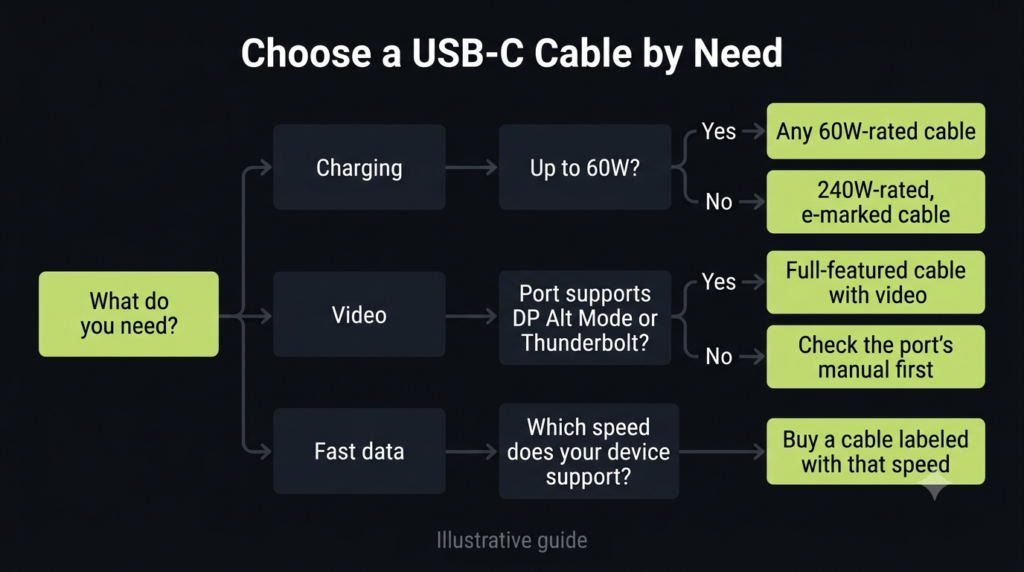
Matching a cable to a device is a lookup problem: find the device, read the minimum power it needs, then add the data and video features you want. Table 1 summarizes typical ranges. Treat the numbers as starting points, and confirm against your device’s manual or charger label, because individual models vary.
| Device Type | Min Power Rating | Recommended Data Speed | Display Support | Key Feature / E-Marker Requirement |
|---|---|---|---|---|
| Smartphones & wearables | 15W–45W (varies by model) | USB 2.0 (480Mbps) is enough for charging; faster only if the phone’s port supports it | Not required | PPS support recommended for some phones; e-marker optional at 3A or less |
| Ultraportable laptops | 60W (20V/3A) | USB 5Gbps–10Gbps | Optional (DP Alt Mode) | E-marker optional at 3A; standard SPR |
| Performance laptops | 100W–140W | USB 10Gbps–40Gbps | Recommended | E-marker required (above 3A; EPR at 28V and higher) |
| Workstations & gaming laptops | 180W–240W | USB4 / Thunderbolt 4 (40Gbps) | Required | E-marker required (PD 3.1 EPR, 48V/5A) |
| 4K/8K monitors, docks & hubs | 65W–100W pass-through | USB 10Gbps–80Gbps | Required (DP Alt Mode or Thunderbolt) | Full-featured, e-marked cable recommended |
Typical ranges for planning, not guarantees. Check your device’s manual, the charger label, and the port icons. Some high-power laptops also ship with their own non-USB-C chargers.
Smart Devices and Wearables
Phones, earbuds, and smartwatches rarely need more than a modest cable. The main question is not wattage but compatibility: does the charger support the fast-charging standard your phone uses, and is the cable in good shape? A short, well-made cable is often better than a long one for phones because it keeps things tidy and avoids voltage loss. If you are building a broader kit around your phone, our guide on how to choose the right phone accessories covers the other pieces worth considering.
Laptops and Workstations (Matching 60W, 100W, or 240W)
Start with the laptop’s original charger label and note its wattage. A cable that cannot carry that power will either charge slowly or be refused by the charger. For a 60W laptop, a 60W-rated cable is enough. For laptops above that, remember that certified 5A cables now carry the 240W rating, so buying the 240W-rated version is the standard way to get headroom. A higher-rated cable never forces more power into a device, which means choosing one step up is a safe way to avoid problems later.
Monitors, Docks, and Hubs (Understanding Power Pass-Through)
Hubs and docks both expand ports, and a common distinction is that hubs are small and often bus-powered, while docks use their own power supply and offer higher pass-through charging. That is only a general pattern, though. Power source, bandwidth, and the number of supported displays differ by product, so the name alone guarantees nothing. Check the pass-through wattage against your laptop’s needs, and confirm the video outputs and speed in the product’s specifications.
Legacy Adapters: What Is Lost with USB-A to USB-C Cables
A USB-A to USB-C cable connects the new plug to an older port, and several features cannot make that jump. It does not support USB Power Delivery or video output, its speed depends on the cable design and the USB-A port, and its charging power stays low because the older side cannot negotiate high wattage. These cables are fine for slow charging and basic accessories. They are the wrong choice for laptops, monitors, or fast storage.
Passive vs. Active Cable Length Limits
Cable length trades against speed. As rough guides, a passive cable can keep its rated speed at about 4m (13 ft) for USB 2.0, about 2m (6.5 ft) for 5Gbps, about 1m (3 ft) for 10Gbps, and about 0.8m (2.6 ft) for USB4 at 40Gbps. Actual limits vary with the standard generation and cable design. Active cables add electronics that retime or boost the signal to extend the distance, which is why they cost more.
A practical way to think about USB-C cable types: charge-focused cables (USB 2.0 data, high wattage), mid-speed cables (5Gbps to 10Gbps), e-marked high-speed cables (USB4 and Thunderbolt), and active cables for longer high-speed runs. Do not expect a long passive cable to hold full USB4 speed beyond the short limits above, and treat any very long, very cheap cable that claims 40Gbps with suspicion.
6. Global Standards and Mandatory USB-C Regulations
EU Common Charger Directive (Timeline and Laptop Mandate)
In the European Union, Directive (EU) 2022/2380 required a common USB-C charging port for many handheld devices, including phones, tablets, cameras, and headphones, from December 28, 2024. For new laptops with wired charging, the requirement applies from April 28, 2026. For devices that support fast charging above 15W, the rules call for USB Power Delivery. According to the European Commission, manufacturers may still add other charging ports alongside USB-C.
These are EU-specific rules that apply to new products placed on the EU market, not to devices people already own. A related EU regulation on external power supplies (2025/2052), applying from December 14, 2028, adds USB-C and PD ports on external chargers, a common charger label, and 60W or 240W markings on USB-C cables, as summarized on EUR-Lex. Neither rule makes all USB-C ports or cables equal in speed or power. The mandate standardizes the connector, not the capabilities behind it, so the label-reading habits from earlier still apply.
Global Adoption Updates (India, South Korea, and Regional Markets)
Other markets are moving in the same direction, but the details are less settled. Based on regulatory reports, India is expected to require USB-C on smartphones from 2025 and on laptops by the end of 2026. Media coverage has cited different start dates for smartphones (March or June 2025), and we could not find an official regulation text, so treat the India timeline as reported rather than confirmed.
Based on regulatory reports, South Korea’s Ministry of Science and ICT issued a notice requiring a USB-C receptacle on specified devices, including phones, tablets, cameras, headphones, and laptops, with the requirement beginning in early November 2026. Sources differ on the exact day (November 5 or 6), so check the official notice if the date matters to you. Rules in other regions may differ again, and this article does not cover every market.
Windows 11 24H2 Port Mandates: Ending Port Roulette
Microsoft’s Windows Hardware Compatibility Program requirements for Windows 11 24H2 target a different problem: ports that look identical but behave differently. Under these requirements, certified new laptops and tablets must support USB PD charging, data at 5Gbps or higher, and video through DP Alt Mode on their USB-C ports. Microsoft describes the goal as ending USB-C port confusion, often called “port roulette.”
The scope is narrow. These are Microsoft certification requirements for new OEM laptops and tablets, not a law, and they do not apply retroactively to laptops already on sale or in use. They also say nothing about the cable or charger you attach, and the power minimums are modest: according to PCWorld’s summary, ports on the higher-speed tier must source at least 15W (7.5W on tablets), while the lower data tier ranges from 4.5W to 15W. The rules guarantee that a port works, not that it charges quickly. In practice, they make it more likely that a new certified Windows laptop’s USB-C ports work for charging, data, and video, but you should still verify the port icons and spec sheet for your model.
7. Troubleshooting USB-C Power, Display, and Data Issues
The One-Variable-at-a-Time Swap Test
When something goes wrong, change only one part at a time so you can tell which part is responsible. The chain has four links: charger, cable, port, and device. Microsoft’s USB-C troubleshooting guidance follows a similar logic of isolating the problem rather than replacing everything at once. Keep a note of each result so you do not lose track.
- Write down the symptom, such as slow charging, no video, or slow transfers, and note the labels on the cable and charger.
- Swap the cable for a known-good cable that matches the wattage and speed you expect, and test again.
- Swap the charger or power source for another one with enough wattage, keeping the original cable.
- Move the connection to a different port on the same device, preferably one with the right icon.
- Try the same cable and charger with a second device. If the problem follows the cable or charger, you have found the faulty part.
Diagnosing Slow Charging, Missing Video, or Dropped Connections
For slow charging, compare the charger’s wattage with what the device wants, and check whether the cable is e-marked or limited to 3A. For a phone, also check whether the charger supports PPS. For missing video, confirm that the port supports DP Alt Mode or Thunderbolt, that the cable is not a charging-only or USB 2.0-only type, and that the monitor is set to the right input. For slow file transfers, check which port you are using and whether the cable carries a speed mark. Many “mystery” slowdowns come down to a cable limited to USB 2.0 speed.
For dropped connections, look for a loose fit, visible debris in the port, or a bent or damaged plug, and try a different cable before suspecting the device. When a problem appears only with one high-power setup, such as a dock feeding a laptop, check that the dock’s power supply is adequate and that the cable meets the dock’s requirements.
Non-Compliant Cables: Real Risks vs. Marketing Hype
Reports from outlets such as How-To Geek and PCWorld describe overheating and device damage from cables that do not follow the USB standard, so the risk is real. The more useful point is what to check rather than a blanket rule that every uncertified cable is dangerous. The issue is non-compliance: wrong wiring, missing safety circuitry, or false ratings, not the absence of a logo alone.
To reduce the risk, look for the USB-IF certified logo together with a 60W or 240W marking, buy from sellers with clear returns, and replace any cable that gets unusually hot, smells odd, or shows physical damage. Be skeptical of cables that claim 240W, 40Gbps, and a long length at a very low price, because those claims pull in different directions.
8. Frequently Asked Questions About USB-C
Is USB-C the same as USB4?
No. USB-C is the connector, while USB4 is a data protocol that uses it. A USB-C port can run anything from USB 2.0 up to USB4 and beyond, so check the specifications for the port in front of you.
Can any USB-C cable charge my laptop?
Not reliably. The cable must support the wattage your laptop needs, and cables without an e-marker are limited to 3A, or 60W at 20V. Check the laptop charger’s label and choose a cable rated at or above that power.
Why does my phone charge fast only with some chargers?
Fast charging often depends on PPS support in both the charger and the phone, plus enough wattage and a capable cable. A basic charger may only deliver the standard charging rate. Check the phone maker’s support page for the standard it uses.
What does 240W on a USB-C cable mean?
It is a certified power rating based on the PD 3.1 Extended Power Range, meaning the cable can carry up to 240W (48V at 5A). It is a capability, not a requirement, so the cable works with lower-power devices too.
Can I charge a laptop with a phone charger?
Sometimes. If the charger supports USB PD and offers enough wattage, it can charge a laptop. If the output is too low, charging will be slow, or the battery may still drain while you work.
Why is my USB-C cable so slow for file transfers?
Your cable or port may be limited to USB 2.0 speed, which is far slower than modern external drives can handle. Look for a speed mark on the cable, and make sure both ends support the speed you want.
Can USB-C send video to a monitor?
Yes, but only if the port supports DP Alt Mode or Thunderbolt, and the cable supports video. A USB-C port used only for charging and data will not output a picture, so check the port icons and device specifications first.
What is the difference between Thunderbolt 4 and USB4?
Thunderbolt 4 guarantees a fixed set of features, including 40Gbps, 32Gbps of PCIe data, and dual 4K display support. USB4 starts from a lower 20Gbps baseline and leaves more features optional, so Thunderbolt 4 is the more predictable choice.
Are all USB-C ports the same speed?
No. USB-C ports range from basic USB 2.0 ports to 80Gbps and beyond. Table 2 in the data section lists the common tiers and the names used for each.
How long can a USB-C cable be?
It depends on the speed. Slower data rates tolerate longer passive cables, while the fastest rates need short cables or active electronics. See the passive and active length section above for rough guides.
Do I need a 240W cable?
Only if your device and charger use Extended Power Range, or if your laptop needs more than 60W and you want a certified 5A cable. For lower-power devices, a 60W-rated cable is enough.
Is Qi2 wireless charging as fast as USB-C?
Not at high power. Qi2 supports 15W and Qi2.2 supports 25W, according to The Verge, while wired USB-C can carry much more. Wireless charging is convenient for top-ups but is not a substitute for a fast wired charger.
9. Conclusion: A 5-Point USB-C Cable Buying Checklist
USB-C is easiest to master when you stop treating it as a single feature and start treating it as a set of questions. The plug answers none of them, and the labels, icons, and spec sheets answer all of them. Before you click buy, run through this short checklist.
- Match the power. Read the wattage on the device’s original charger, and choose a cable rated at or above it, using the 60W or 240W mark as your guide.
- Look for the certified mark. Prefer cables that show the USB-IF logo with a power rating, and treat unlabeled “fast” claims with caution.
- Match the data speed. If you move large files, look for a speed mark such as 10Gbps, 20Gbps, or 40Gbps, because power ratings say nothing about data.
- Confirm video support. For monitors, check that the port supports DP Alt Mode or Thunderbolt before you buy the cable or adapter.
- Mind length and seller. Keep high-speed cables short or choose active versions, and buy from sellers with clear specifications and returns.
The checklist works because it follows the same chain every USB-C connection depends on: charger, cable, port, and device. If you can name the weakest link in that chain, you can predict what the connection will do. A 60W-rated cable with a 5Gbps mark paired with a Thunderbolt laptop port will still behave like a 60W, 5Gbps connection, and that is a perfectly good outcome for a phone or an everyday laptop charger. It becomes a problem only when you expected a different result from the label you never read.
It also helps to keep two habits. First, buy for the job you actually have: a charging cable for the nightstand, a short high-speed cable for the dock, and a longer cable only where the speed demands are low. Second, keep the swap test in mind for the day something misbehaves. Change one part at a time, and the culprit usually shows itself quickly, without guesswork or replacing everything at once.
Last reviewed: October 22, 2026