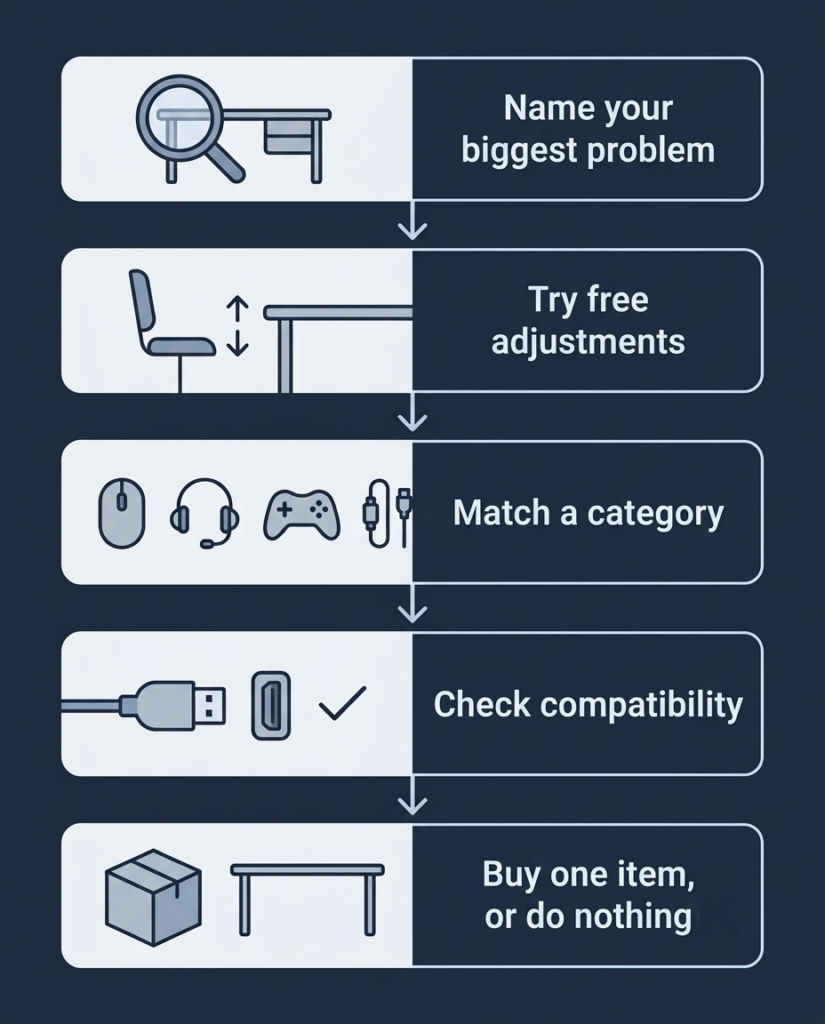
Knowing how to choose gaming accessories starts with working out what is actually uncomfortable about your setup, not with browsing popular gear. A sore wrist, a heavy headset, a tangle of cables, and a dead controller battery each have a different fix, and sometimes the fix costs nothing. This guide gives you a simple order of operations: name the problem, try free adjustments, match the problem to an accessory category, check compatibility, weigh the tradeoffs, and only then decide whether to buy anything.
It is written for PC, console, and mixed setups, and it assumes you may not need new gear at all. The advice here is general decision criteria, backed by official guidance where that exists. It is not medical advice, and it does not rank or recommend specific products.
Table of Contents
1. Start by Identifying What’s Making Your Gaming Setup Uncomfortable
The fastest way to avoid a wasted purchase is to name the one problem that bothers you most. “My setup feels off” is too vague to shop for, while “my right wrist aches after an hour with the mouse” or “my controller is dead every time I sit down” points to a specific check and a specific fix.
Common Gaming Setup Problems and What They May Point To
These patterns are starting points for investigation, not diagnoses. If you have persistent pain, numbness, or tingling, a healthcare professional is the right person to ask, not an accessory.
- Hand or wrist discomfort: may point to a mouse that is too large or too small for your hand, a keyboard or mouse placed too far away, or a desk and chair height that force your wrists to bend.
- Head, ear, or neck discomfort: may point to a heavy headset, a band that presses too tightly, ear cushions that rub against glasses, or a screen that is too high or low.
- Voice chat or audio frustration: may point to a microphone that sits too far from your mouth, a headset that does not isolate room noise, or a connection method that does not support the microphone on your platform.
- Clutter, tangled cables, or too few USB ports: may point to poor cable routing, a missing hub, or chargers and docks competing for the same outlet.
- Controller fatigue or dead batteries: may point to a controller that slips in your hands, a charging routine that is easy to forget, or no fixed place to store the controller.
- Cramped movement: may point to a mousepad that is too small for how far you move the mouse, or a desk surface with no room left for it.
| Problem | What to check first | Accessory category to consider |
|---|---|---|
| Wrist or hand discomfort | Mouse size against your hand, grip style, and desk and chair height | A differently sized mouse, or a more compact keyboard |
| Head, ear, or neck discomfort | Headset weight, how tightly the band presses, and fit with glasses | A lighter headset or different ear cushions, if the model offers them |
| Voice chat or audio problems | Microphone position and whether your connection method supports the microphone | A headset or microphone confirmed for your platform |
| Too few USB ports | Which ports are free and what each device actually needs | A USB hub that the device maker supports |
| Controller slipping or dead batteries | How the controller feels in your hands and where you charge it | Grips, a charging dock, or a stand made for your controller model |
| Cramped desk or tangled cables | Free desk space and where cables currently run | A larger mousepad, clips, or ties |
How to Decide Which Problem to Fix First
If several things bother you, rank them with three questions. First, which problem causes physical discomfort rather than mere annoyance? Second, which one affects you every session instead of once in a while? Third, which one can you try to solve for free? Physical discomfort and daily friction come first, and anything you can fix by moving, adjusting, or tidying comes before anything you have to buy.
Fixing one problem at a time also tells you what worked. If you replace a mouse, a headset, and a mousepad in the same week, you will not know which change helped, and you may spend money on the two that did nothing.
2. Choose Accessories Based on Your Biggest Comfort Problem
Once you know the problem, match it to the category that addresses it and learn what actually matters in that category. Marketing words such as “pro” or “ergonomic” tell you little; physical fit, weight, reach, and how the item connects tell you a lot.
Keyboards and Mice: Fit, Reach, and Input Comfort
Your keyboard and mouse are the parts of the setup your hands touch for hours, so fit matters more than features. The U.S. Occupational Safety and Health Administration (OSHA) advises choosing a pointing device sized for the hand that will use it and testing it before long-term use. It also notes that a device that is too big or too small can push the wrist into awkward positions, and it recommends placing the mouse close to the keyboard so the wrist can stay straight.
Start by noticing how you hold the mouse. A palm grip rests your whole hand on the mouse, a claw grip arches the fingers, and a fingertip grip touches the mouse mostly with the fingertips. Larger mice tend to suit palm grips and smaller mice tend to suit claw and fingertip grips, but your own hand is the real test, so compare the published length and width against how your hand measures.
A tenkeyless keyboard drops the number pad. That can leave more desk space and let you keep the mouse closer to your body, which some players find more comfortable. It will not suit you if you type numbers often, and it does not change comfort by itself if the desk or chair height is the real problem.
Who may benefit: players whose hands tire quickly, players whose mouse sits far from the keyboard, and players with limited desk space.
Who may not need a new one: players who feel no strain, keep their wrists straight, and have a mouse that already fits their hand.
Gaming Headsets: Weight, Fit, and Audio Needs
Headset comfort comes down to weight, how tightly the band presses on your head (often called clamping force), how the padding is distributed, and what the ear cushions are made of. Fabric cushions tend to feel cooler, while synthetic leather cushions tend to block more outside sound but can feel warmer. If you wear glasses, check whether the cushions press the frames against your temples, because a headset that is comfortable on its own can become uncomfortable with glasses.
Product pages often list weight, but clamping force is rarely published as a number, so reviews that describe fit and your own return window matter more than the spec sheet. Decide how you will use the microphone before you buy: a boom microphone on an adjustable or detachable arm is usually easier to position than a fixed one, and some players prefer a separate desktop microphone and ordinary headphones.
Who may benefit: players who feel pressure on the head or ears during long sessions and players who spend a lot of time in voice chat.
Who may not need a new one: players who already have comfortable headphones and a microphone that works on their platform.
Controllers: Grip, Charging, and Storage
Controller accessories solve three separate problems: a controller that slips, a controller that is dead when you want it, and a controller that ends up on the floor or the couch. Grips and covers add texture or thickness and can make a controller feel more secure, but they only fit certain controller models, so confirm the exact model before buying. Charging docks and stands are also model-specific and may need their own power source.
Before buying anything, try the simplest routine first: put the controller on its cable at the same time every day, or keep one spare charging cable where you play. Many people find that a habit solves the problem for free.
Who may benefit: players whose controllers slip, players who forget to charge, and anyone sharing a small space where controllers get lost.
Who may not need one: players who already keep controllers in one place on a cable without trouble.
Mousepads and Desk Organization: Movement and Clutter
A mousepad affects how far your hand can travel. If you use low mouse sensitivity, you move the mouse farther for the same cursor movement and need more surface; if you use high sensitivity, a smaller pad may be enough. Measure your free desk space before choosing a size, and remember that a pad that is too large for the desk can push your keyboard or arms into awkward positions.
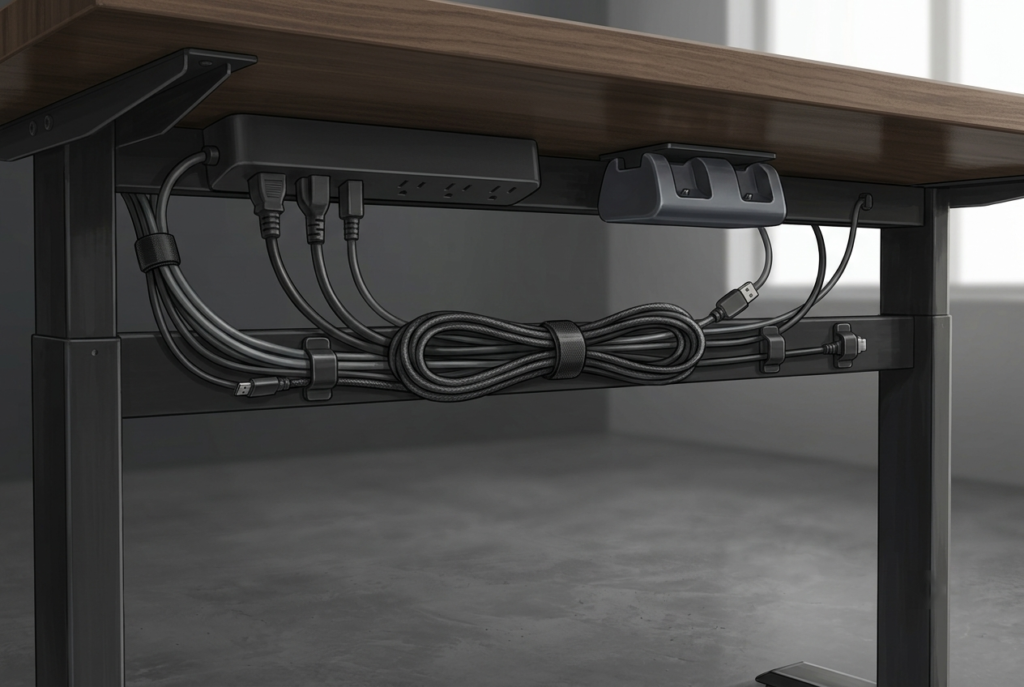
For clutter, start with cheap options: hook-and-loop ties, cable clips, or a cable tray under the desk. If you are short of USB ports, check which ports you actually have free and what each device needs before adding a hub.
Who may benefit: players whose mouse movement is cramped or whose cables tangle and tug.
Who may not need one: players with enough surface area and cables that already run cleanly.
3. Check Compatibility Before Buying Gaming Accessories
An accessory is compatible only if your specific platform supports its connection type and its features, such as the microphone. A connector that fits the port does not guarantee that. Two headsets with the same USB plug can work very differently on a PC and a console, so always check the accessory maker’s compatibility list and your console maker’s support page.
What to Check for PC, Console, and Hybrid Setups
- PC: PCs generally accept the widest range of accessories, but features such as lighting, button remapping, or microphone settings may need the maker’s software. Check your free USB-A and USB-C ports and whether your PC has Bluetooth.
- PlayStation: Sony’s support page describes PlayStation wireless headsets connecting through a USB wireless adapter that plugs into the console. Third-party headsets may connect differently, so confirm the exact connection method for your console and model. PS5 USB ports also differ by model group, with different mixes of USB-A and USB-C on the front and back.
- Xbox: Windows Central reports that the Xbox Series X does not support Bluetooth headsets directly and relies on Xbox Wireless, wired, or controller-jack connections instead. Check Xbox’s own support page for your exact console, since that report does not settle every model.
- Nintendo Switch: Bluetooth audio arrived with system update 13.0.0 in September 2021. Nintendo Wire reports that Bluetooth microphones are not supported, that only up to two wireless controllers can stay connected while Bluetooth audio is active, and that Bluetooth audio cannot be used during local wireless play.
- Hybrid setups: if you play on more than one platform, look for an accessory that lists support for each one by name, and check whether the microphone works on every platform you use.
USB Ports, Connections, Microphones, and Charging
Ports come first. Count the free ports you have and note their type, because ports differ between console models and between PCs. A wireless headset adapter needs a port of its own, so a console with every port already in use may need a rearranged setup before a new headset will work.
Microphones come second, and they are where compatibility fails most often. A headset can play sound on your console and still not pass your voice to chat. Check the product page for the microphone on your specific platform, not only for audio output, and remember the Switch limitation above if you plan to use Bluetooth.
Charging comes third. Docks and charging stands are usually built for specific controller models and may draw power from a wall outlet, a USB port, or the console itself, so confirm the power source and the cable length against where your desk and outlets actually are. If a product page does not clearly answer a compatibility question, treat that as a warning and ask the maker or retailer before opening the box.
Official pages worth checking before you buy include PlayStation’s headset pairing guide, Xbox Support’s headset connection page, and the accessory maker’s own compatibility list.
4. Understand the Tradeoffs Before Choosing an Accessory
Almost every accessory choice trades one benefit for another, and none of the options below is better for everyone. The table summarizes the main criteria and limits; the sections after it explain when each option makes sense.
| Comparison | Main decision criteria | Important limitations |
|---|---|---|
| Wired vs. wireless | Battery management, desk clutter, connection reliability, and delay | Wireless needs charging or batteries; wired cables can tug or clutter the desk |
| Mechanical vs. membrane keyboards | Key feel, typing sound, and price | Mechanical boards are often louder and cost more; feel is personal, so neither is universally better |
| Open-back vs. closed-back headsets | Outside noise, sound leakage, and your listening environment | Open-back designs leak sound; closed-back designs block more noise and may feel warmer |
Wired vs. Wireless Gaming Accessories
Wired accessories avoid battery management and usually give a steady connection, which suits a desk setup that never moves. Wireless accessories remove cable drag and clutter, which suits a shared space or a couch, but you have to keep them charged and keep the dongle or pairing working. Think about your routine: if you already forget to charge things, wireless may add a new annoyance.
Latency is the delay between an action and its result on screen or in your ears. Manufacturers sometimes publish latency figures, but those figures are measured in different ways. Compare like with like or look for independent testing that explains its method, and do not treat a single number as proof that one accessory will feel better to you.
Mechanical vs. Membrane Keyboards
Mechanical keyboards use individual switches, and membrane keyboards use a rubber layer under the keys. In general, mechanical keyboards offer more variety of key feel and cost more, while membrane keyboards tend to be quieter and cheaper. Neither type is automatically more comfortable. If you share a room, sound may matter more than feel; if you type a lot, how far the keys travel and how much force they need may matter most. If possible, try one in a store before buying.
Open-Back vs. Closed-Back Headsets
Open-back headphones let air and sound pass through the ear cups, so they leak sound to people nearby and let room noise in. Closed-back headphones seal the cups to block more outside noise and keep sound from leaking, though some people find them warmer during long sessions. Your room decides the choice: a quiet room to yourself can suit an open design, while a shared room or a noisy household usually points to closed-back.
When Controller Accessories Are Worth It
A grip or dock is worth buying when it solves a problem you actually have, such as slipping, dead batteries, or a messy charging area, and when it is confirmed for your exact controller model. If you rarely play on a console, or you already store and charge your controllers without trouble, an extra accessory adds clutter and little else.
5. Build a More Comfortable Gaming Setup on a Budget
A budget approach means spending nothing first, then spending a little on one thing, and only then considering anything bigger. Many comfort problems come from how the setup is arranged rather than from the gear itself.
Prioritize Fixes Before Buying New Gear
Begin with posture and placement. OSHA’s guidance on good working positions describes a neutral posture with your joints naturally aligned, your elbows close to your body with a bend of roughly 90 to 120 degrees, and your hands, wrists, and forearms in a straight line. It also advises changing position frequently rather than holding one posture for long periods. Adjusting your chair and desk height toward that position costs nothing and may make long sessions more comfortable, though it is not a medical treatment.
If the problem persists after you have adjusted your posture, buy one item that addresses your top-ranked problem, and keep the receipt and return window in mind. Then wait a few sessions before deciding whether you need anything else.
Low-Cost Changes That May Help First
- Move the mouse closer: keep it near the keyboard so your wrist can stay straight instead of reaching sideways, as OSHA recommends.
- Check screen height: position your monitor at a comfortable viewing height so you are not craning your neck, and keep your keyboard and mouse near the desk edge to avoid reaching.
- Take breaks and shift position: standing, stretching, or changing posture every so often is part of OSHA’s guidance on working positions.
- Tie down loose cables: hook-and-loop ties or clips on the back or underside of the desk keep cables out of the way for very little money.
- Clean what you have: wipe your mousepad and mouse sensor and check that your cables and ports are not loose or dusty before replacing anything.
- Fix the charging routine: choose one place to charge controllers and make it a habit before buying a dock.
6. Gaming Accessory Checklist: What to Check Before You Buy
Use these questions before any purchase. If you can answer yes to the first one and every question that applies, the accessory is probably worth considering. If you cannot answer one, find the answer before you buy.
Comfort and Fit
- Does this accessory solve a specific problem I identified, rather than a general wish to upgrade?
- Have I already tried free adjustments to posture, placement, and cable routing?
- Does the size, weight, and shape suit my hand, head, glasses, or desk, based on published measurements and honest reviews?
Compatibility and Space
- Does the maker list my exact platform and model, including the microphone and any wireless adapter?
- Do I have a free port of the right type for it?
- Is there physical room for it on my desk and near an outlet?
Maintenance, Charging, and Long-Term Use
- Am I ready to charge it, replace batteries, or keep an adapter plugged in?
- Can I clean it, and are replacement parts such as ear cushions available?
- Do I know the return policy if it does not feel right after a few sessions?
If an accessory fails more than one of these questions, the better decision is usually to keep adjusting what you already own. A more comfortable setup comes from solving one real problem at a time, not from buying a full set of gear.
Here is how the checklist works on a real decision. Suppose your ears feel sore after an evening of voice chat. Start with comfort: is the soreness from the cushions pressing against your glasses, or from the band? Then check compatibility: does the headset you are considering list your console and its microphone, and does it need a USB port you do not have free? Finally, check long-term use: can you replace the ear cushions, and what happens if you return it after a week? Each answer either narrows the choice or sends you back to an adjustment you can make for free.
Write the answers down if you are comparing two products, because the same questions applied to both make the difference between them visible. An accessory that looks better on a product page but fails a compatibility or return-policy question is usually the wrong one, and an accessory you decide not to buy still counts as a good result if it keeps your setup simple.
7. Sources and Further Reading
- OSHA Computer Workstations eTool: Good Working Positions
- OSHA Computer Workstations eTool: Pointer/Mouse
- PlayStation Support: How to pair PlayStation wireless headsets
- PlayStation Support: USB ports guide for PS5 consoles
- Windows Central: Does the Xbox Series X or Series S support Bluetooth?
- Nintendo Wire: Nintendo Switch adds Bluetooth audio support
Last reviewed: October 14, 2026