HDMI vs DisplayPort comes down to what feeds the monitor: DisplayPort is usually the better fit for a PC with a high-refresh-rate monitor or several displays, while HDMI is usually the better fit for a console, TV, or projector. Neither is better across the board, and the version printed next to a port matters less than whether the source device, the cable, and the monitor all support the same speed. The setup table below matches five common desks to an interface, and the sections after it cover bandwidth, cable labels, and adapters.
Quick answer
- Verdict: DisplayPort for a gaming or multi-monitor PC, HDMI for a console, TV, or projector, and either one for a single monitor at 60 Hz.
- Condition: Match the version on both ends and use a cable with the right certification label. An HDMI source feeding a DisplayPort-only monitor needs an active adapter, and adapters work in one direction only.
- Official sources: HDMI Licensing Administrator and VESA’s DisplayPort site.
- Next step: Find your source device in the setup table below and follow its “Crucial Feature to Check” column.
How HDMI and DisplayPort Differ
Both interfaces carry digital video and audio over one cable, so the difference is mostly about what each was built around. HP describes DisplayPort as designed mainly for computer monitors, and it is more commonly found on high-end gaming monitors and graphics cards. HDMI is the more universal connector: HP says it works with nearly every monitor, and TVs, projectors, and consoles commonly use it.
Three practical differences follow from that history:
- Multiple monitors. DisplayPort supports Multi-Stream Transport (MST), a feature that lets one DisplayPort connection carry signals for more than one display, including daisy-chained monitors on models that allow it. HDMI does not support daisy chaining.
- Audio return. HDMI supports ARC and eARC, which send audio from a TV back to a sound system. HP’s cable guide describes that as not a typical use for DisplayPort.
- Connector. According to HP, DisplayPort cables have a locking system that prevents accidental disconnection.
Those differences explain the usual advice, but they do not make either interface faster in every case. Speed depends on the version each device supports, which the bandwidth section below covers.
Which One to Use: A Monitor Setup Decision Matrix
Start with the device that sends the picture, then look at the monitor, then decide what matters most: refresh rate, console features, a tidy desk, or several screens. The table gives a default for five common setups. Treat it as a starting point, because the “Crucial Feature to Check” column is what prevents a wrong purchase.
| Setup Type | Recommended Interface | Crucial Feature to Check | Mistake to Avoid |
|---|---|---|---|
| Single gaming PC | DisplayPort. HDMI 2.1 is a workable alternative when both ends support it. | The refresh rate and variable refresh rate support the monitor lists for each input. | Choosing by port shape alone, without checking the versions on the graphics card and the monitor. |
| Console connected to a monitor | HDMI. | HDMI 2.1 on the monitor input, plus an Ultra High Speed HDMI cable, for modes such as 4K at 120 Hz with variable refresh rate. | Buying a DisplayPort-only monitor. Most consoles output HDMI, so you would need an active HDMI-to-DisplayPort adapter. |
| Laptop plus one external monitor | HDMI through a full-size HDMI port. Otherwise USB-C with DisplayPort Alternate Mode. | Whether the laptop’s USB-C port supports video output, and the HDMI version of its HDMI port. | Assuming every USB-C port can drive a monitor. |
| Dual-monitor office desk | Either interface. Use the input that the PC and both monitors share at the same version. | How many video outputs the PC or dock provides, and whether each monitor gets its own cable. | Planning to daisy-chain HDMI monitors, which cannot be chained. |
| Multi-monitor creative desk | DisplayPort with MST, or a Thunderbolt or USB-C dock. | A DisplayPort Out port on the first monitor, with MST switched on in its menu if the monitor requires it. | Expecting full resolution and refresh rate on every screen in the chain. |
Single gaming PC
DisplayPort is the default for a desktop gaming PC because HP calls it often the better choice for PC gaming, noting that it supports high refresh rates and adaptive sync. HP also notes that HDMI 2.1 supports high refresh rates and variable refresh rate, so either connection can work well when the computer and monitor both support the version you need. The monitor’s specification sheet settles it: compare the refresh rate it lists over DisplayPort with the one it lists over HDMI, and if the two differ, use the input with the higher limit.
Console connected to a monitor
A console is the clearest case for HDMI. Most consoles output HDMI, and HDMI 2.1 brought gaming-oriented features: variable refresh rate (VRR), which the HDMI Licensing Administrator says reduces lag, stutter, and frame tearing, and Auto Low Latency Mode (ALLM), which lets the display switch to its lowest-latency setting automatically. These features reach the screen only if the monitor’s HDMI input supports them, so look for the HDMI version and the feature list in the manual instead of just counting ports. A monitor with only DisplayPort inputs is the wrong match, because it forces an active adapter into the chain, as the adapter section below explains.
Laptop plus an external monitor
The ports on the laptop decide this one. A full-size HDMI port is the simplest route, since HP describes HDMI as working with nearly every monitor, though it advises checking the laptop’s HDMI version when you want a high refresh rate at 1440p or 4K. A thin laptop with only USB-C can still reach either interface, but only if that port supports video output through DisplayPort Alternate Mode, USB4, or Thunderbolt. HP suggests looking for a display or Thunderbolt icon beside the port. For more on how USB-C ports and cables differ, see our USB-C explainer on connectors, cables, and charging.
Dual-monitor office desk
This is the least demanding case. HP says either connector usually suffices for general computing and single-monitor use as long as it supports 60 Hz, and the same reasoning applies to two monitors that each get their own cable. Pick the input that the computer and both monitors share, and check the version only against the resolution you need. HP lists 4K at 60 Hz as the ceiling for HDMI 2.0, so a 4K office monitor on an older HDMI 2.0 port works but will not go past that refresh rate.
Multi-monitor creative or productivity desk
Daisy-chaining is where DisplayPort pulls ahead. With MST, only the first monitor connects to the computer and each later monitor connects to the one before it, which cuts cable clutter and lets a laptop with few ports run more displays. The first monitor needs a video output, usually labeled DisplayPort Out. Every monitor in the chain shares one connection’s bandwidth, so HP’s example is that a link able to run one 4K monitor at a high refresh rate may need lower settings to run two. Platform support varies as well: Windows supports DisplayPort MST for extending the desktop across chained monitors, while macOS does not support it for separate extended displays, although Thunderbolt daisy-chaining works on a Mac. If you are planning this from a laptop dock, our guide to choosing a USB-C hub covers ports, power delivery, and display limits.
Bandwidth and Versions: HDMI 2.1 vs DisplayPort 2.1
Bandwidth is the amount of data a connection can carry each second, measured in gigabits per second (Gbps), and it sets the ceiling for resolution, refresh rate, and color depth. The table lists the published maximums and the cable label each version calls for. Read it as a ceiling, not a promise: HP warns that a device listed as HDMI 2.1 may not support every feature of the specification, so check the resolutions and refresh rates the monitor lists over that specific port.
| Interface Version | Max Bandwidth | Cable Label to Look For |
|---|---|---|
| HDMI 2.0 | 18 Gbps | Premium High Speed HDMI |
| HDMI 2.1 | 48 Gbps | Ultra High Speed HDMI |
| HDMI 2.2 | Up to 96 Gbps | Ultra96 HDMI |
| DisplayPort 1.4 | 32.4 Gbps | VESA-certified DisplayPort cable |
| DisplayPort 2.1 | Up to 80 Gbps (UHBR20) | DP80 for the full speed, DP40 for the lower speed tiers |
DisplayPort 2.1 adds a second wrinkle. The name covers three speed levels, UHBR10, UHBR13.5, and UHBR20, and the top speed depends on both the graphics card and the monitor supporting the same level. Two devices that both say DisplayPort 2.1 can therefore link at different speeds. VESA tells buyers to look for DP80-certified cables for full UHBR20 performance, and it says DP40-certified cables are validated for its DP54 rating, so a DP40 cable fits the middle tier but not the top one.
The old shorthand that DisplayPort has more bandwidth than HDMI no longer holds on paper. The HDMI Licensing Administrator lists HDMI 2.2 at up to 96 Gbps and says the Ultra96 cable is the only cable that supports all of its applications. HP’s October 2026 guide adds that devices supporting HDMI 2.2 are still arriving, so most monitors today use HDMI 2.0 or 2.1. For a purchase today, the practical comparison is still between the versions your own monitor lists.
A higher number is also not the only route to a demanding mode. Display Stream Compression (DSC) is a VESA technology that compresses the signal so a connection can carry more than its raw bandwidth would allow. HP says it is designed to be visually lossless and that many high-resolution, high-refresh monitors rely on it over DisplayPort 1.4 and HDMI 2.1. That means those monitors can still reach demanding modes, provided both ends support DSC.
In practical terms, HP’s tables put HDMI 2.0 at 4K and 60 Hz, HDMI 2.1 at 4K and 120 Hz or 8K and 60 Hz, DisplayPort 1.4 at 4K and 120 Hz, and DisplayPort 2.1 at 4K and 240 Hz. Cable length matters too. HP notes that shorter cables are more reliable at high speeds and that very high-bandwidth passive cables may have short maximum lengths, so check a cable’s certification label and its length together.
Adapters and Conversion: Getting Them to Work Together
Adapters solve a mismatch between ports, and the first thing to settle is direction. Dell’s support guidance is blunt: an adapter built to convert DisplayPort to HDMI cannot work in reverse. Name the device that sends the picture, the source, and the one that receives it, the display, then buy the adapter that matches that source-to-display direction.
HDMI to DisplayPort, such as a console or an HDMI-only laptop feeding a DisplayPort monitor, always needs an active adapter. An active adapter contains a chip that converts one signal type into another. Dell explains that HDMI devices cannot output a DisplayPort signal, so the conversion has to happen outside the source. Some active adapters include a USB cable that must be plugged in to power the chip, so if the screen stays blank, check that connection first.
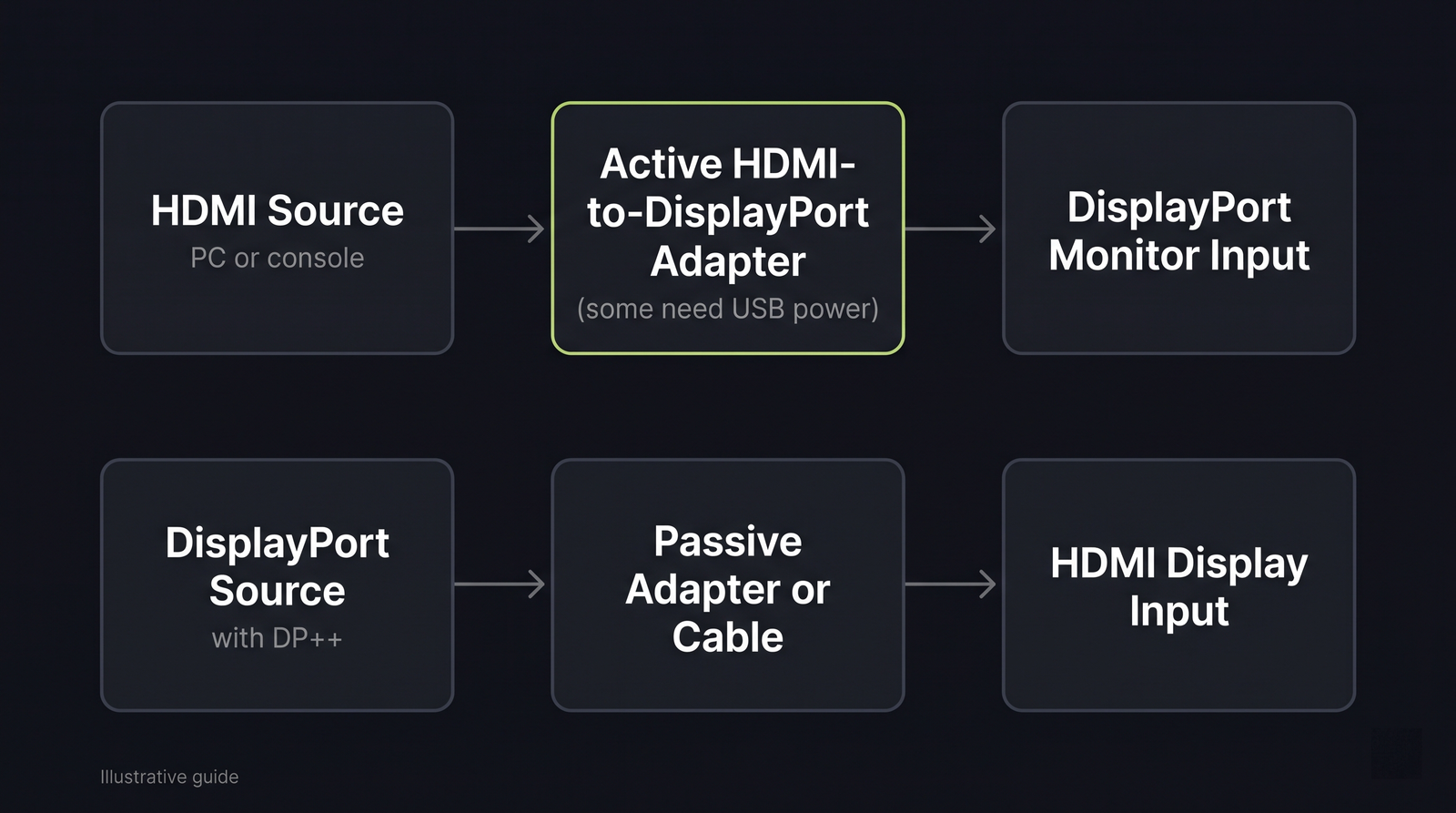
The other direction is easier. DisplayPort to HDMI can use a simple passive adapter when the graphics card supports Dual-Mode DisplayPort (DP++), which Dell says most modern cards do. Passive adapters do not suit multi-monitor modes such as AMD Eyefinity or NVIDIA Surround, or cards without DP++ support, and in those cases Dell recommends an active adapter.
Whatever the direction, an adapter can only pass what both sides support. HP advises matching the adapter to your display’s resolution and refresh rate, and notes that some adapters top out at 4K and 30 Hz. Confirm that the adapter’s listed resolution and refresh rate match the mode you want, and favor certified products: VESA’s DisplayPort site advises choosing DisplayPort-certified products to get the most performance.
Next Step
The HDMI Licensing Administrator’s overview includes a graphic on how to identify Ultra High Speed HDMI cables, and VESA’s DisplayPort site points to a products database for verifying certified cables. On the day you buy, confirm that the exact mode you want, such as 4K at 120 Hz with variable refresh rate, is listed for the specific monitor input and graphics output you plan to use.
Sources
This guide is based on manufacturer and standards-body documentation. PickyKit has not tested these cables, adapters, or monitors.
- HP Tech Takes: Monitor Connectivity: What Are Monitor Ports and Connections? (October 23, 2026)
- HP Tech Takes: Cables and Adapters Explained: USB-C, HDMI, DisplayPort, and Common Adapters (October 26, 2026)
- HP Tech Takes: DisplayPort vs HDMI: Which Cable Is Best for Your Setup?
- Dell Support: HDMI to DisplayPort Adapter: A Simple Guide (article 000125170, last modified April 19, 2026)
- HDMI Licensing Administrator: HDMI 2.2 Specification Technology Overview
- VESA: DisplayPort
Last reviewed: November 18, 2026