To understand exactly how to choose a USB-C hub for K-pop media editing and general workstations, you must select a model supporting at least 4K at 60Hz video output and subtract roughly 15W from your wall charger’s rating to calculate your actual charging delivery. While packaging frequently advertises “100W Power Delivery,” that figure represents the maximum power the hub can receive from an external charger, not what reaches your laptop after the hub reserves its own operating power. Furthermore, because video output and high-speed data transfer share the same internal cable lanes via DisplayPort Alt Mode, choosing an under-specced hub can downgrade your monitor to a laggy 30Hz refresh rate or drastically throttle connected storage drives.
Quick answer
- The 15W Tax: A 100W PD hub consumes roughly 15W for its internal chipsets, delivering only ~85W to your laptop.
- The 60Hz Rule: Avoid 4K@30Hz models; they cause severe cursor lag and screen stutter. Insist on 4K@60Hz.
- Next step: Confirm your laptop’s minimum charging wattage and your monitor’s input ports before finalizing a port configuration.
The 15W Power Tax: How Power Delivery Passthrough Actually Works
One of the most common reasons laptops trigger a “slow charging” warning when connected to a multi-port adapter is the misunderstanding of Power Delivery (PD) passthrough limits. When a hub advertises “100W PD,” that number represents its maximum input capacity from the wall charger, not the output it delivers to your computer.
Most USB-C hubs consume roughly 15W of power to operate their internal controllers, HDMI chips, and USB data ports. This “15W hub tax” is deducted directly from whatever your wall adapter provides. If you use your laptop’s standard 65W stock charger and run it through the hub, your machine will only receive about 50W. Under heavy workloads like video editing or compiling audio tracks, 50W may not be enough to prevent the battery from slowly draining while plugged in.
| Charger Input Wattage | Hub Operating Power (Tax) | Net Power Delivered to Host | Real-World Operational Status |
|---|---|---|---|
| 45W (Ultraportable) | ~15W | ~30W | Likely triggers slow charging; battery may drain under load. |
| 65W (Standard Laptop) | ~15W | ~50W | Adequate for basic tasks; may struggle during heavy media rendering. |
| 100W (High-Capacity) | ~15W | ~85W | Provides excellent sustained power for heavy workflows. |
Display Refresh Rates: Why 4K at 30Hz Causes Interface Lag
When selecting display outputs, many budget accessories prominently advertise “4K Video Support.” However, digging into the technical specifications often reveals they are capped at 4K resolution at a 30Hz refresh rate. While 30Hz is technically acceptable for watching standard movies, it is virtually unusable for interactive computer work.
At 30Hz, the screen only updates 30 times per second. This cuts the smoothness of your interface in half compared to a standard monitor. The result is a mouse cursor that visibly stutters and jumps across the screen, creating an immediate sensation of system lag. When shopping, always verify that the HDMI or DisplayPort specification explicitly guarantees 4K at 60Hz. This ensures that timeline scrubbing, window dragging, and daily navigation remain perfectly smooth.
Shared Bandwidth: How DisplayPort Alt Mode Affects USB Data
Standard USB-C connections rely on internal high-speed data lanes that must be physically split between different tasks. When you plug in an external monitor, the hub uses a protocol called DisplayPort Alternate Mode (DP Alt Mode) to commandeer these lanes for video transmission. This creates a hard mathematical limit on what is left over for your data.
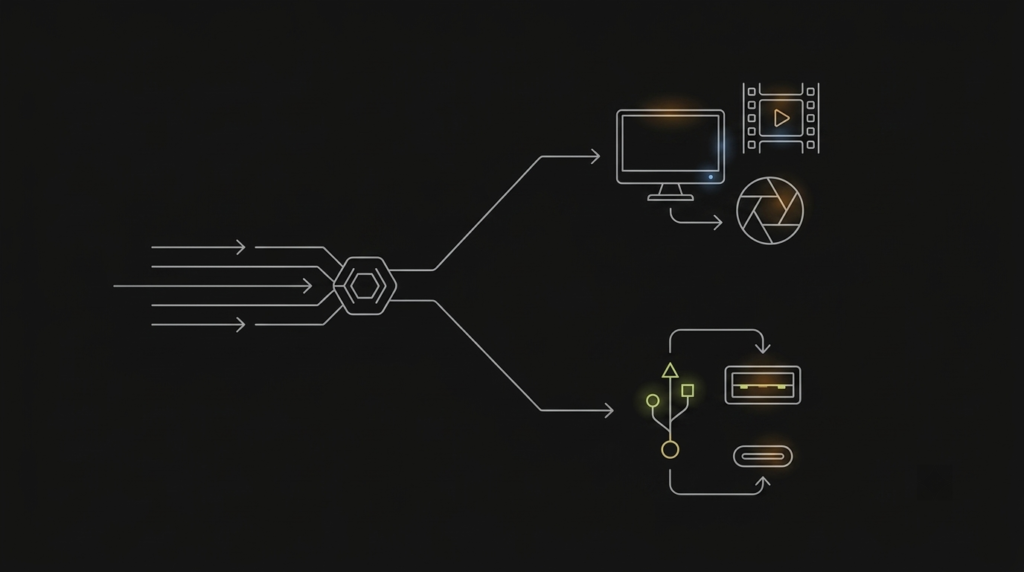
If you connect a 4K display at 60Hz over a standard USB-C hub, the video signal consumes half or more of the available physical lanes. Consequently, the remaining lanes are often forced to downgrade from 10 Gbps speeds down to USB 2.0 or basic USB 3.0 speeds. If you regularly transfer massive video files from external solid-state drives while running a high-resolution monitor, you will experience severe data throttling unless you upgrade to a Thunderbolt 3 or USB4 hub, which offer significantly larger overall bandwidth pipelines.
Portable USB-C Hub vs. Powered Docking Station
Your physical desk environment dictates whether you need a portable, bus-powered hub or a dedicated docking station. A standard hub draws all of its operating power directly from the laptop (or from the passthrough charger you plug into it), making it highly portable. However, this lack of an independent power supply limits how many high-draw peripherals (like external hard drives or charging phones) you can connect simultaneously.
Powered docking stations, conversely, plug directly into an AC wall outlet. They manage all peripheral power independently and typically provide full 85W+ charging to your laptop via a single cable. While docks are superior for permanent desk setups, digital nomads and traveling editors must note that desktop docks require heavy power bricks. Additionally, docks are subject to regional voltage differences (110V vs 220V) and require country-specific wall plugs, whereas a portable hub functions identically anywhere in the world.
| Feature | Portable USB-C Hub | Dedicated Desktop Dock | Primary Fit Rule |
|---|---|---|---|
| Power Source | Bus-powered (runs off laptop) | AC-powered (requires wall outlet) | Hubs excel for travel; docks rule permanent desks. |
| Video Output Ceiling | Often limited to single 4K display | Frequently supports dual 4K monitors | Docks are mandatory for advanced multi-monitor rigs. |
| Data Sharing | Bandwidth throttles with video use | Dedicated controllers maintain speeds | Docks prevent SSD lag when rendering media. |
Port Selection Checklist: Matching Connectors to Daily Peripherals
Purchasing a “10-in-1” model is counterproductive if you only need three specific connections, as unnecessary ports increase the physical bulk and baseline power consumption. Evaluate your workflow and prioritize exactly what you plug in daily.
For wired internet stability during large uploads, ensure the hub features a Gigabit Ethernet port. If you use older audio interfaces, MIDI keyboards, or wireless mouse dongles, legacy USB-A ports remain mandatory. Content creators transferring media directly from cameras should verify that the built-in SD card reader supports UHS-II speeds, as cheaper hubs often use sluggish USB 2.0 readers that bottleneck file transfers. Once you have your hub and peripherals mapped out, keeping the desk tidy is the next step—check out our ideas on how to store charging cables neatly.
Before purchasing any hub, check your laptop manufacturer’s minimum charging requirements and verify that your external monitor supports 60Hz over your chosen model’s specific HDMI or DisplayPort standard. If your net output falls below your laptop’s minimum, you will need to upgrade your wall brick (refer to our guide on finding the right USB-C charger wattage for your laptop).
Sources
- Framework Community: Details about USB, Thunderbolt, and Dock Operation
- Ugreen: Best USB Hubs and Refresh Rate Constraints
- Havit: Power Delivery Input Ceilings vs. Real Output
Last reviewed: November 4, 2026