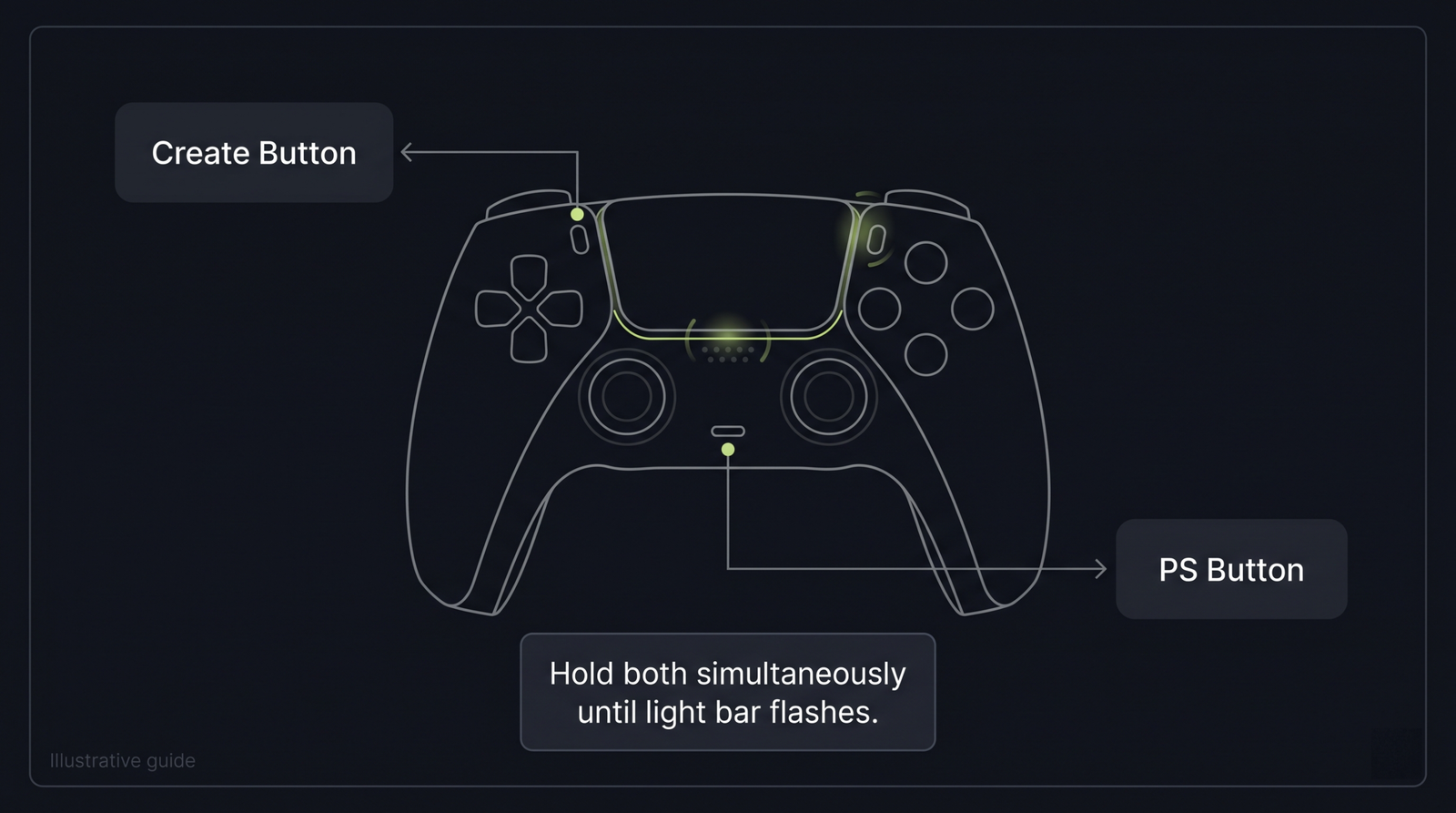
To wirelessly connect PS5 controller hardware, hold the PS and Create buttons simultaneously until the light bar flashes, then select the controller in your device’s Bluetooth menu. While a wired PC connection is an automatic plug-and-play process, wireless connections have strict requirements, such as needing iOS 14.5 or later for Apple devices.
Quick answer
- Pairing Mode: Hold the PS + Create buttons simultaneously until the light bar flashes rapidly.
- Windows PC: Connect via a plug-and-play USB-C cable or use Steam’s built-in PlayStation configuration support for Bluetooth.
- Apple Devices: Strict limits apply; requires iOS 14.5+, iPadOS 14.5+, or macOS 11.3+ to recognize the controller.
- PlayStation Official Support Bluetooth Pairing Guide
Device and Connection Matrix
The fastest connection method depends entirely on the operating system platform and whether you intend to play games through Steam. Review the compatibility matrix below to identify the precise software limits for your device.
| Device Platform | Wired (USB-C) | Wireless (Bluetooth) | Requirements & Notes |
|---|---|---|---|
| Windows PC (Steam) | Plug-and-play driver install | Native via Steam settings | Enable “PlayStation Configuration Support” in Steam’s controller menu. |
| Windows PC (Non-Steam) | Plug-and-play driver install | Requires third-party software | Windows treats the controller as a generic DirectInput device. Emulators like DS4Windows are often necessary. |
| Apple (iOS / Mac) | Supported on modern Macs/iPads | Native Bluetooth pairing | Hard-locked to iOS 14.5+, iPadOS 14.5+, macOS 11.3+, or tvOS 14.5+. |
| Android | Depends on the device | Native Bluetooth pairing | Most modern Android 12+ devices handle the mapping natively. |
How to Connect PS5 Controller to a Windows PC
Connecting a DualSense controller to a Windows machine forces you to choose between two main routes: the automatic wired method or the slightly more complex wireless Bluetooth setup. A wired connection via a USB-C to USB-C (or USB-A to USB-C) cable is a true plug-and-play experience. When connected with a cable, Windows automatically detects the hardware and installs the necessary audio and input drivers within seconds. If you prefer to game at a desk, a reliable wired setup is often best, though it may require you to rethink how to choose gaming accessories to maintain a clutter-free environment.
When switching to a wireless Bluetooth connection, the software platform running your game becomes the primary deciding factor. To pair the device, hold the PS button and the Create button simultaneously until the light bar pulses. Open the Windows Bluetooth & devices menu, click “Add device,” and select the Wireless Controller from the list.
However, getting Windows to recognize the hardware via Bluetooth is only half the process. Because the device uses the DirectInput API rather than Microsoft’s native XInput API, many standalone PC games will not recognize the inputs correctly. If you are playing games through Steam, navigate to Steam’s settings, open the Controller tab, and enable PlayStation Configuration Support. Steam will automatically translate the signals for the game. For non-Steam games, third-party emulation software like DS4Windows is often required.
How to Connect to Apple Devices (iPhone, iPad, Mac)
Apple has officially integrated compatibility into its ecosystem, but this support is strictly restricted by operating system versions. If an Apple device fails to recognize the controller, it is almost certainly a software version issue. According to official Apple documentation, the device must be updated to at least iOS 14.5, iPadOS 14.5, macOS 11.3, or tvOS 14.5. Devices running older operating systems will not display the controller in their pairing menus.
To connect the hardware, put the controller into pairing mode by pressing and holding the PS and Create buttons until the light bar begins to flash. On an iPhone or iPad, open the Settings app, tap Bluetooth, and ensure Bluetooth is toggled on. Scroll to the “Other Devices” section, where the “DualSense Wireless Controller” will appear. Tap the name to pair it. On a Mac, open System Settings, navigate to the Bluetooth menu, and click “Connect” next to the controller’s name.
How to Connect to Android Devices
Unlike the Apple ecosystem, Android does not impose strict minimum operating system versions for standard Bluetooth connectivity, although modern Android 12+ devices provide much better native button mapping. Enter pairing mode by holding the PS and Create buttons simultaneously.
Navigate to your Android device’s Settings app and open the Connected Devices or Bluetooth menu. Tap “Pair new device” and wait for the system to scan for active hardware. When “Wireless Controller” or “DualSense” appears in the available devices list, tap it to establish the connection. Once the light bar on the controller turns solid, the setup is complete and ready for mobile gaming.
Before launching your game, verify whether it natively supports DirectInput controllers or if you need to route it through Steam’s PlayStation configuration setting.
Sources
- PlayStation Official Support: How to pair your DualSense wireless controller
- Apple Official Specifications: DualSense Wireless Controller Compatibility
Last reviewed: November 10, 2026